
The Bookyt Reporting Tool helps you evaluate statistical data in a targeted way. You can create, save, and reuse custom queries.
Important: The reporting module must be activated. You can find the activation option in the account settings under Extensions.
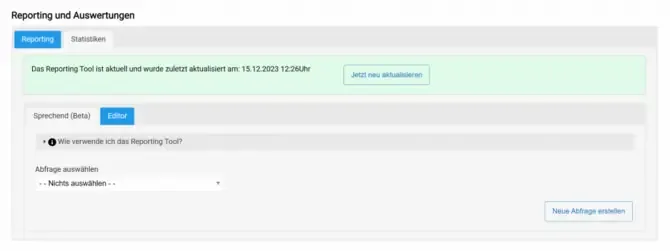
Create a Query
- In the Reporting Tool, select Create new query.
- Select the required tables from the options displayed.
- Switch to the Fields tab to view the available query fields for the selected tables.
- Select the required fields.
- Open the Order tab to sort the selected fields using drag and drop.
- Define a label for your analysis and save the query.
Use Filters and Sorting
To narrow down the output further, use the filter and sort function:
- Define all values.
- Enter a name for the report.
- Save the report with Update and save report.
This allows you to select it directly the next time you open it, with all saved filters applied immediately.
If you have activated the API interface, you can save the API call, customize it with your API token, and use it externally. Typical target systems include Excel or accounting tools.
Additional Features of the Reporting Tool
The Bookyt Reporting Tool not only lets you create custom queries, but also offers many other useful features.
- Easy saving: Your queries can be saved without difficulty and opened again at any time when needed.
- Flexible filter options: You can filter and sort your data by various criteria to get exactly the information you need.
- Integration with external applications: The API interface allows you to integrate your data seamlessly into other applications such as Excel or accounting software.
Tips for Optimal Use
To get the most out of the Bookyt Reporting Tool, keep the following tips in mind:
- Regular updates: Keep your queries up to date to ensure you always receive accurate data.
- Test different filters: Try different filter settings to gain different perspectives on your data.
- Use the documentation: The documentation provides additional information about features and analysis options.