With the Bookyt app, you can process returns directly on site. You can review booking data, record the return time and any damage, have the customer sign, and settle outstanding payments.

Overview of returns
Log in to the app and open the “Return” section. There you will see upcoming returns. You can use the search bar or the QR code button to find the relevant booking more quickly.
After selecting the booking, the return process starts. You will see a complete booking overview and can access important return functions:
- Comment fields
- Booking details
- Rental item exchange
- Return time
- Damage management
Tap “Next” to continue.


Use comment fields
In the return process screen, you can add or edit comments. Use this function for notes that are relevant to the return.
Edit booking
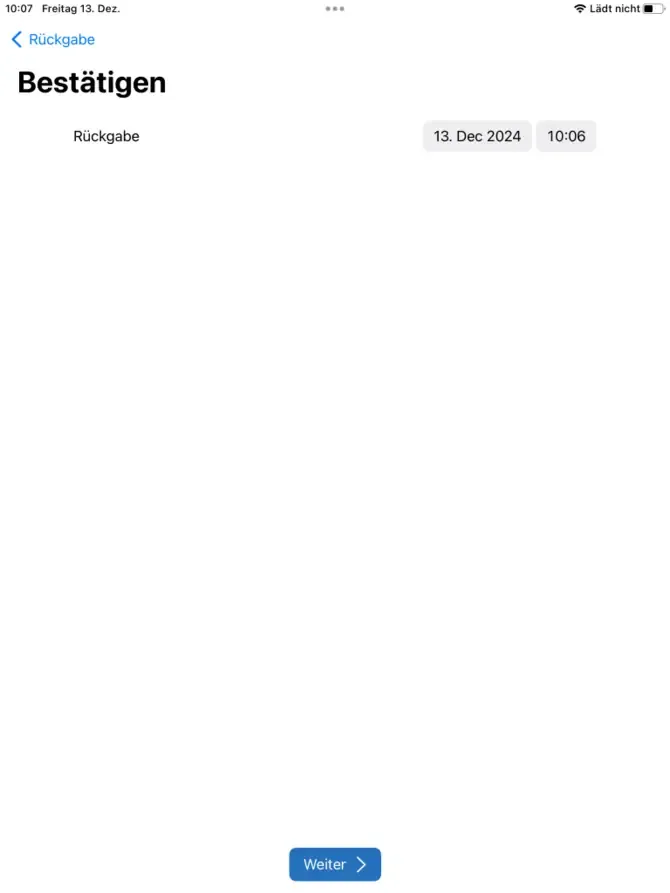
After continuing, you record the return time. Check the date and time carefully so that the return is documented correctly.

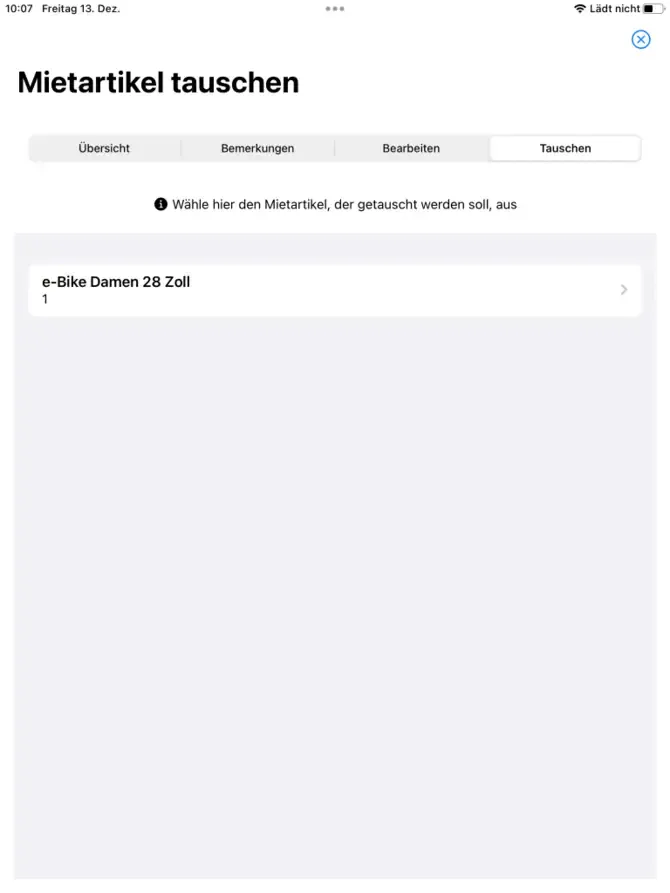
Exchange rental items
If necessary, you can exchange a rental item during the return. Review the changed details before completing the process.
Entering time and date
When entering the return time, it is important to specify the time and date precisely. This helps you and the customer complete the return process smoothly.
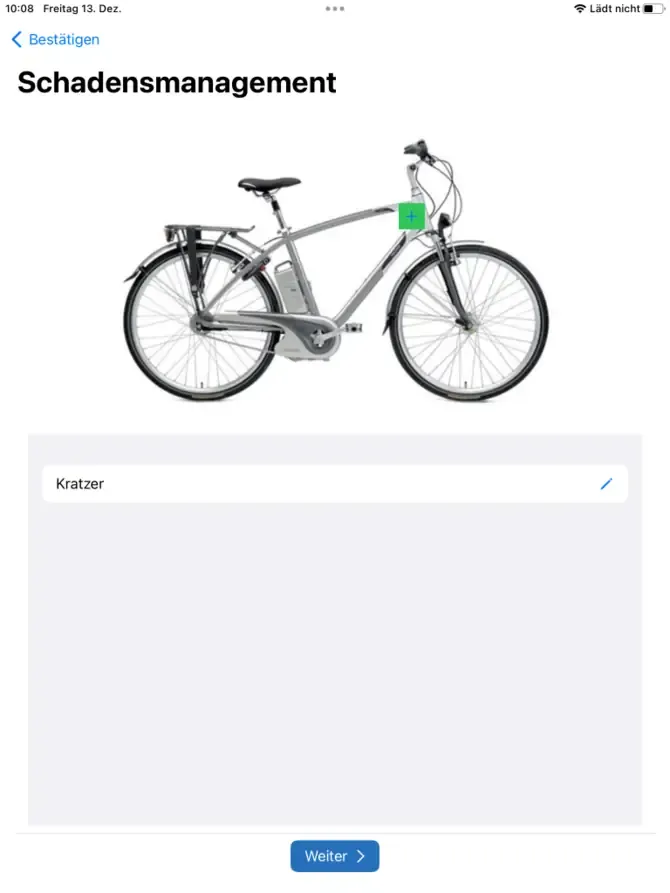
Damage management
In damage management, you create new damage records or reconcile existing damage. This ensures the return is documented transparently.
Customer signature
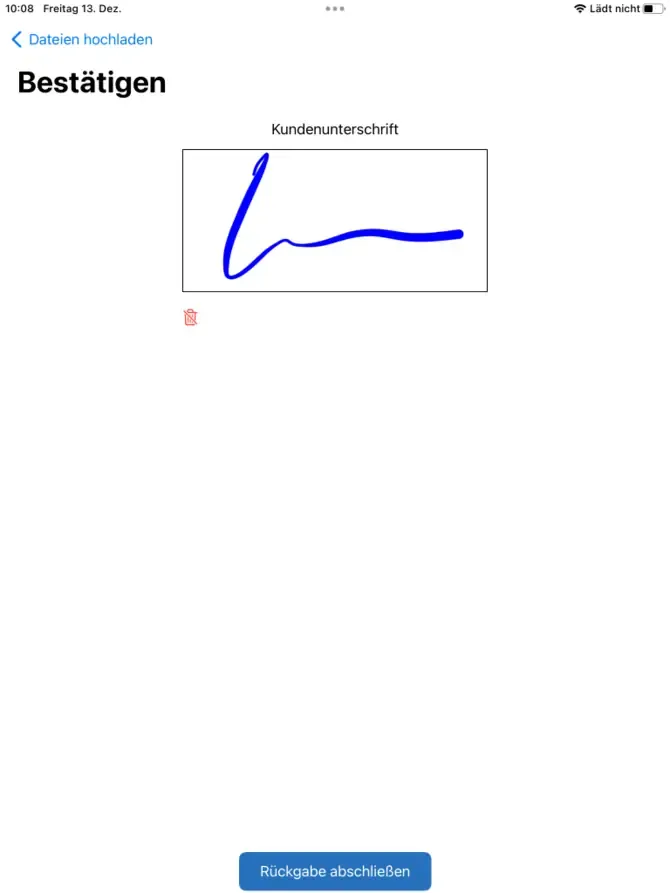
After all details have been checked, the customer signs the return. This is an important step for officially completing the return.
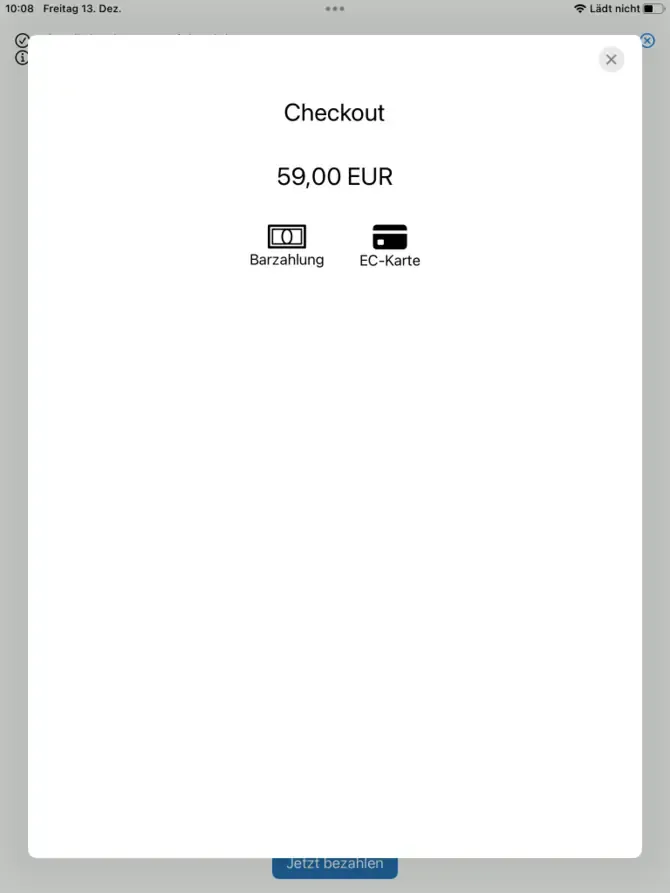
Select payment methods
After the signature, you are taken to the payment page, where outstanding amounts or additional payments can be collected. Select the appropriate payment method.
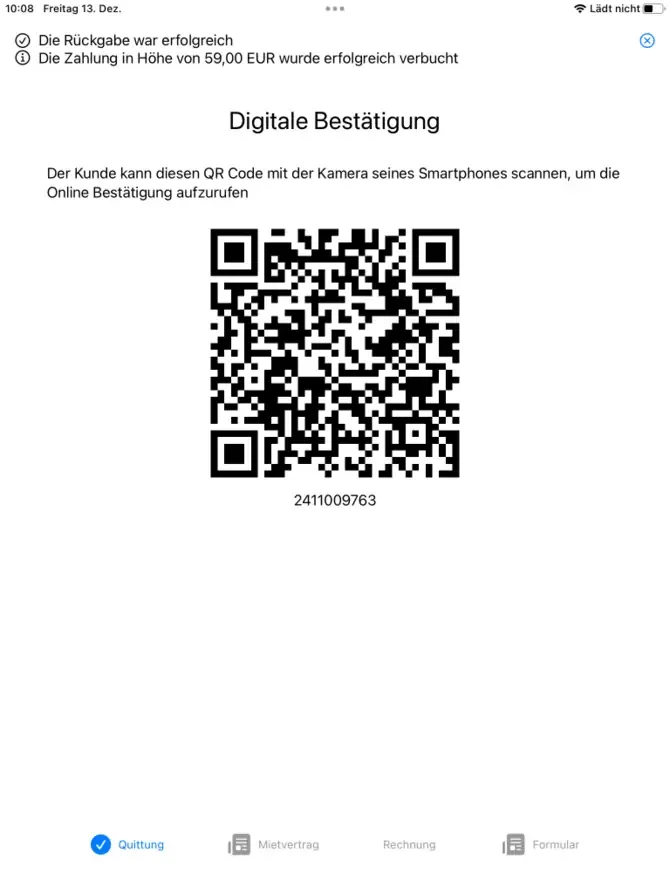
QR code for pickup confirmation
After completing the return, you can display generated documents and provide the customer with a QR code. The customer can use this QR code to open the booking overview.