
If you want to create several similar rental items, you can copy an existing rental item directly via the occupancy plan. This saves time because the name, basic data, and registration can be selectively carried over or adjusted.
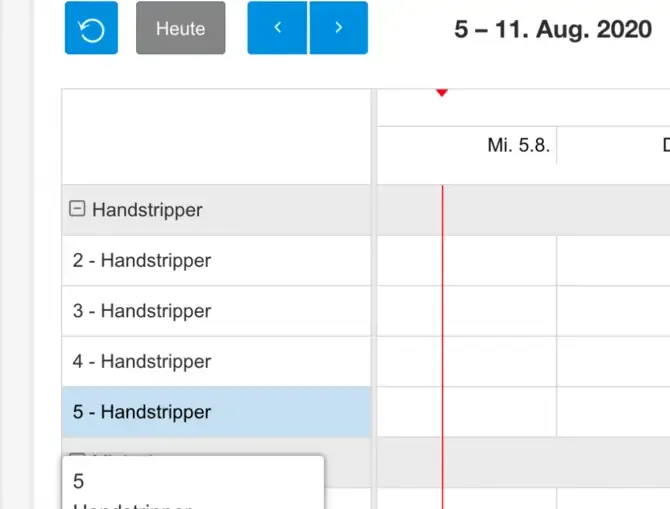
Copying Rental Items in the Occupancy Plan
- In the occupancy plan, click an existing rental item that you want to copy.
- In the dialog, select the “Copy” option.
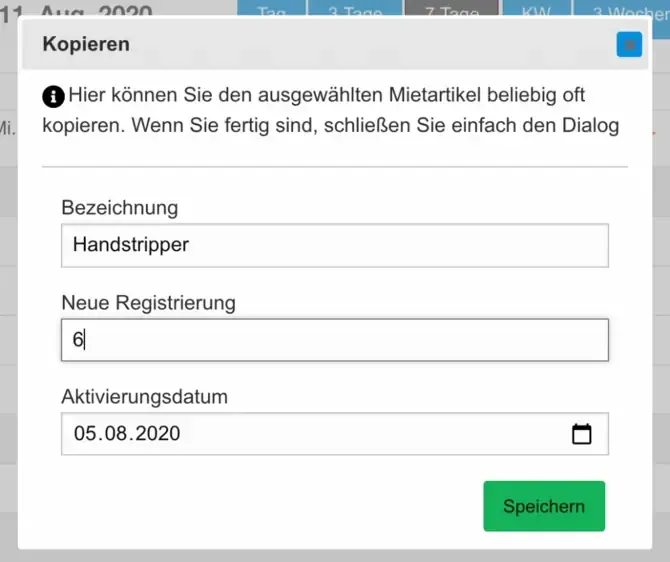
- Enter a different name if needed, as well as the registration.
If the registration is numeric, it is increased by +1 after the item has been copied successfully, allowing you to create many rental items quickly.
Copy Rental Item Dialog
In the dialog for copying a rental item, you can:
- Enter a new name if you need a different one.
- Adjust the registration.
The numeric registration is automatically increased by +1, making it easier to create multiple rental items.
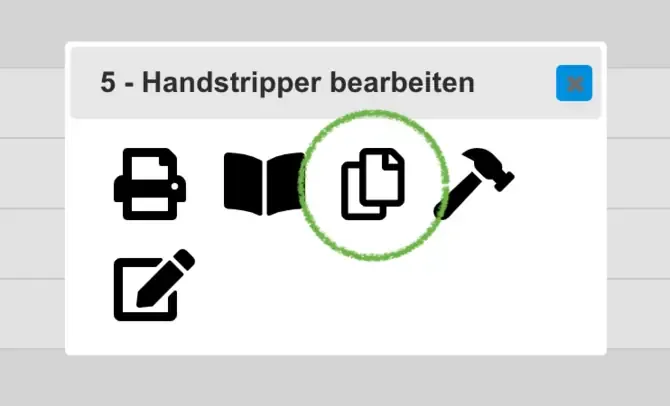
Creating and Copying Rental Items
To create additional rental items, go to “Vehicles” or “Rental Items” in the administration area (depending on the software version, the menu item may have a different name). Set up your rental items there.
From the stored validity date onward, you can book the rental items in the occupancy plan.
In summary, you can:
- Create rental items via the administration area.
- Quickly copy rental items via the occupancy plan.