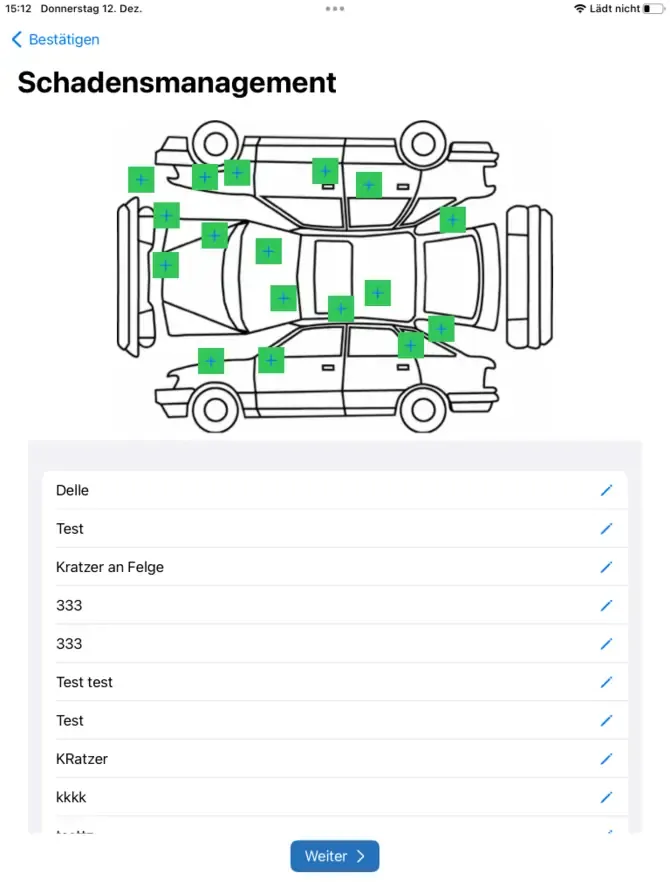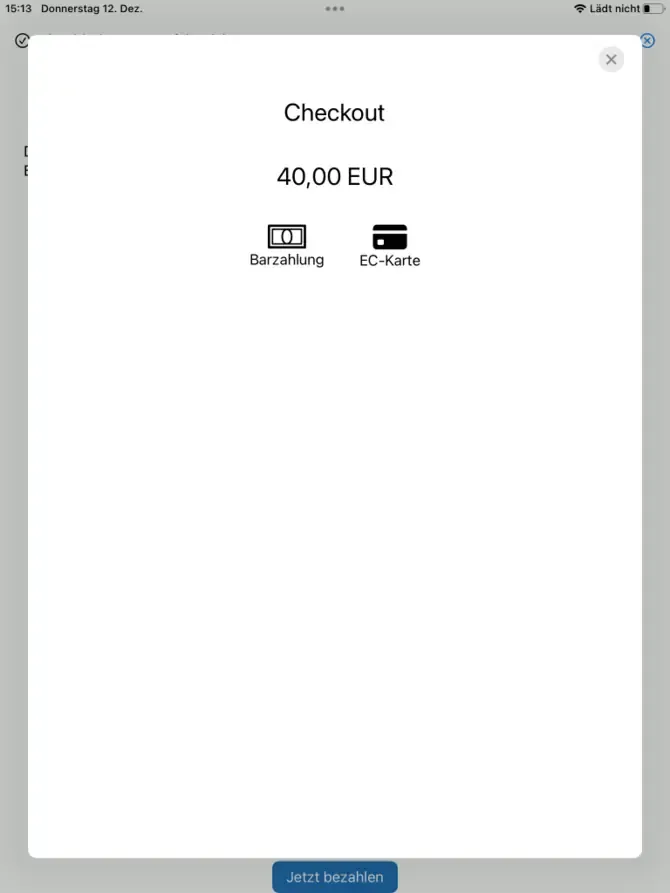
With the Bookyt app, you can complete pickups directly on site. The workflow guides you from login and booking review through to signature, payment, and handover of the rental item.
Logging in to the App
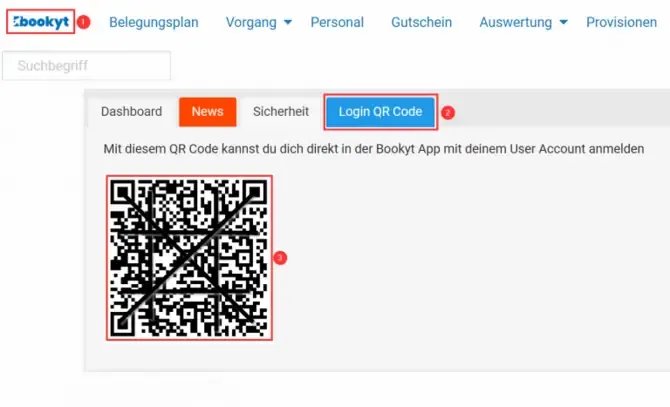
In the app, tap “Scan” to start the camera. You can find the login QR code in the Bookyt backend via the logo at the top left. Individual login QR codes for specific employees can be created under “Administration” → “People”.

Select Rental Station
If multiple rental stations have been created, select the current station after logging in and tap “Next”.
Add Employee Signature
Add your employee signature for the active session and tap “Next”.

Open Pickup
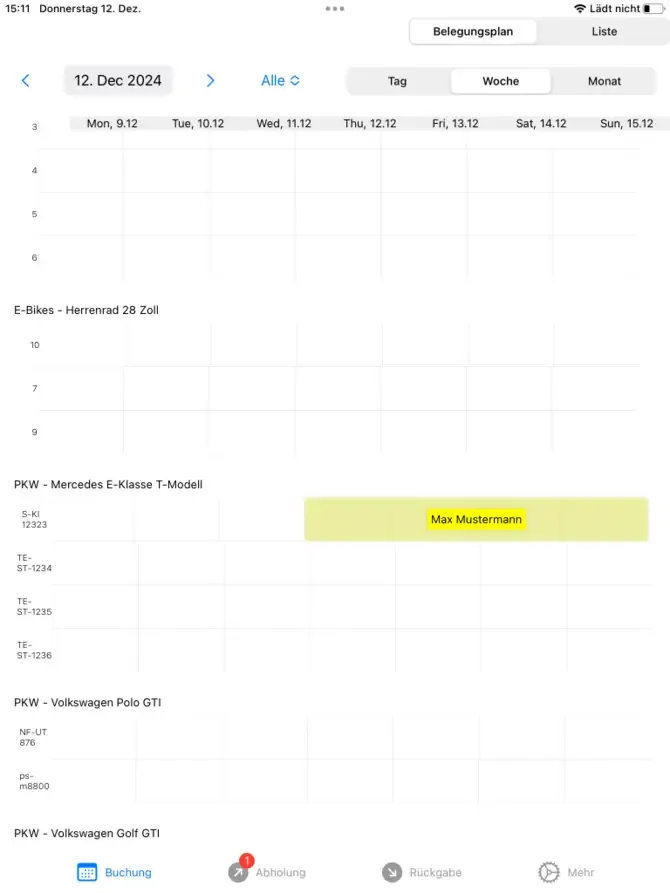
After logging in, you will see the occupancy schedule. If pickups are due, open the “Pickup” section via the footer bar.

Select Booking
In the process overview, you can see upcoming pickups. Tap the booking that should be handed over. The guided pickup workflow will then start.

Review Booking Details
Review the booking details in the overview. Depending on your configuration, you can switch between “Overview”, “Notes”, and “Edit”.
Complete the Pickup Workflow
If the details are correct, tap “Next” and follow the guided pickup workflow. Among other things, record the odometer reading at departure and confirm receipt of the security deposit if this is part of your process.


Review Damage and Notes
During the workflow, you can view, edit, or add damage records and notes.
Edit Process and Upload IDs
Upload the required IDs or driver’s licenses. You can use the camera on the iPhone or iPad for this, or access existing images.


Rental Agreement and Signature
To complete the process, Bookyt creates the rental agreement from the entered data. The customer can review the agreement and then sign it with a finger or a suitable stylus.


Payment and Completion
Select the payment method if needed and complete the process. Depending on your configuration, the payment is processed directly within the app workflow.