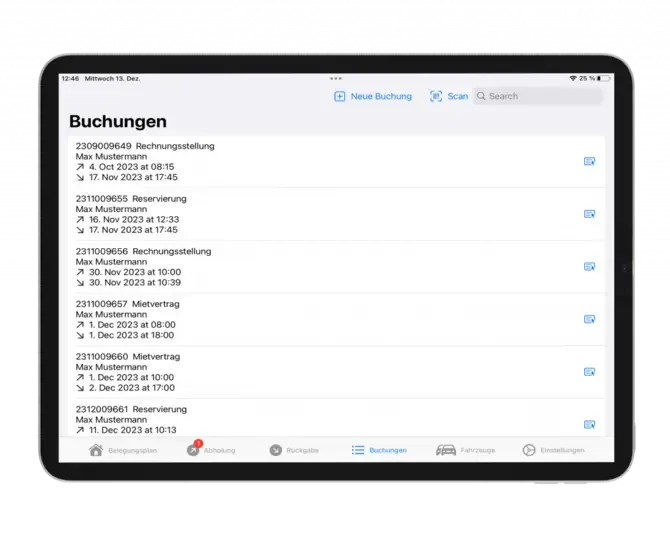
The Bookyt app supports digital rental processes directly on iPhone and iPad. You can view bookings, process pickups and returns, document damage, and create rental agreements digitally.
To use the app, you need a compatible device running iOS or iPadOS.
Sign in to the app
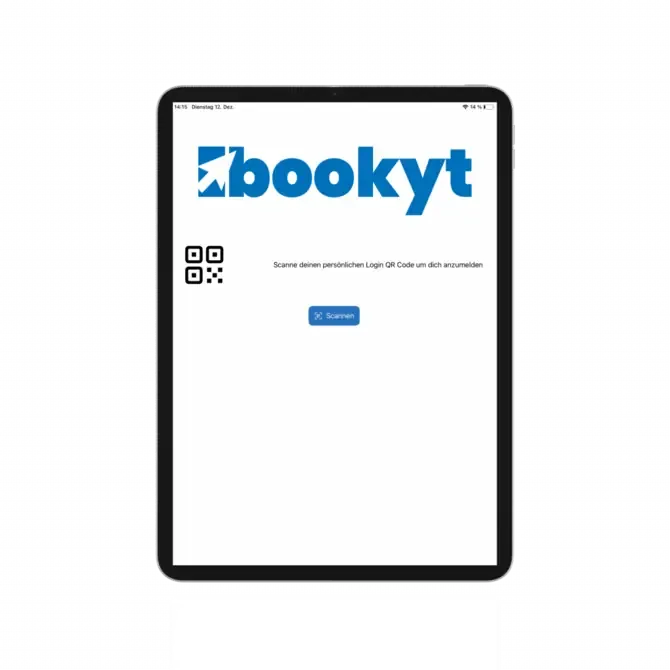
Open the app and tap “Scan”. Then scan the login QR code from your Bookyt backend. You can find the QR code in the backend via the logo at the top left of the dashboard, in the “Login QR Code” tab.
Store a signature
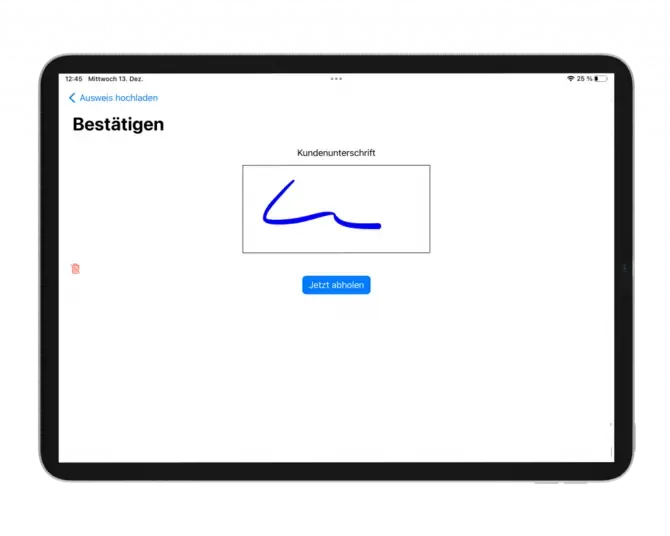
After logging in, you can store your employee signature for the active session. This means it does not need to be captured again for every handover. After logout, the signature is deleted and must be stored again in the next session.
Occupancy schedule
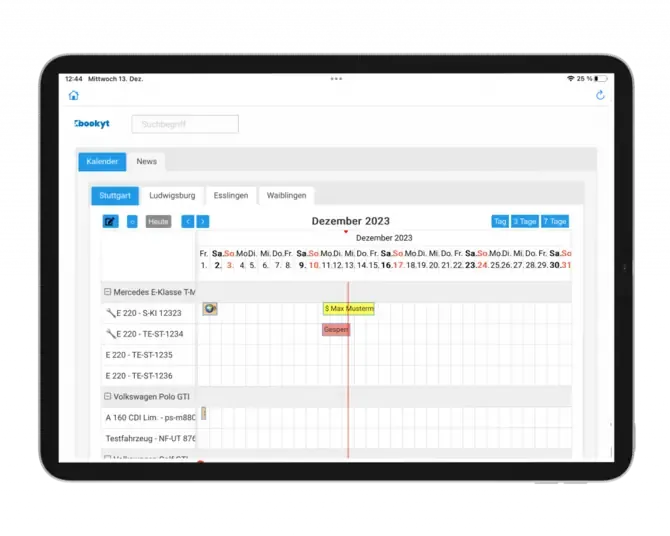
The occupancy schedule gives you an overview of your bookings. The app offers fewer detailed functions than the web backend, but it is optimized for on-site operational workflows.
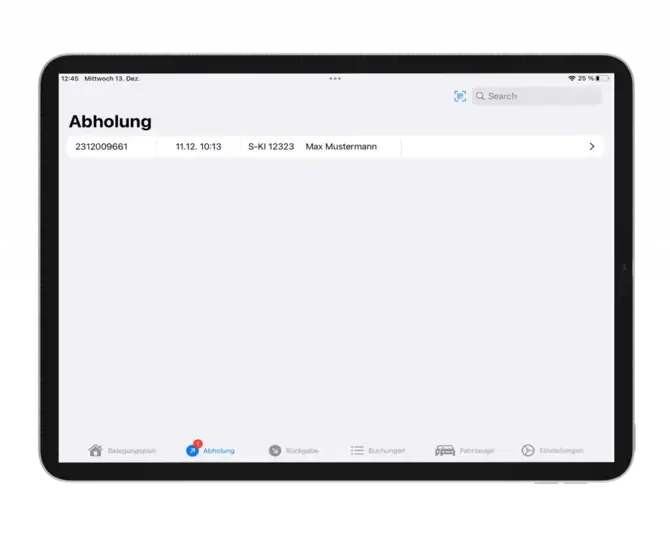
In the footer, you will find the most important areas: “Occupancy schedule”, “Pickups”, “Returns”, “Bookings”, “Vehicles”, and “Settings”.

Pickup
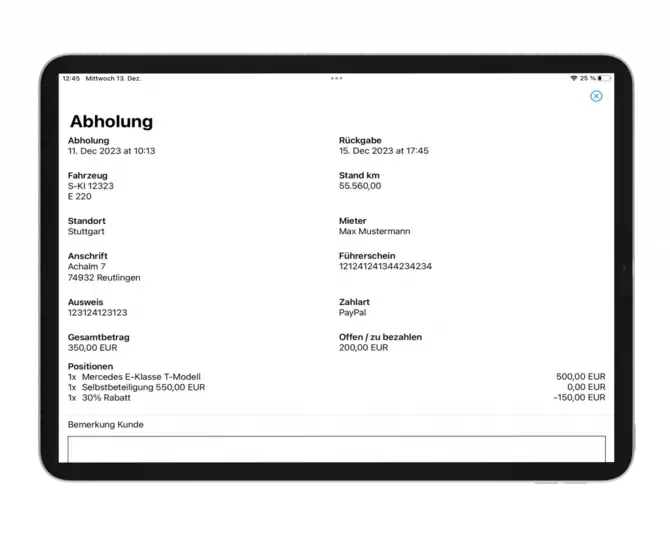
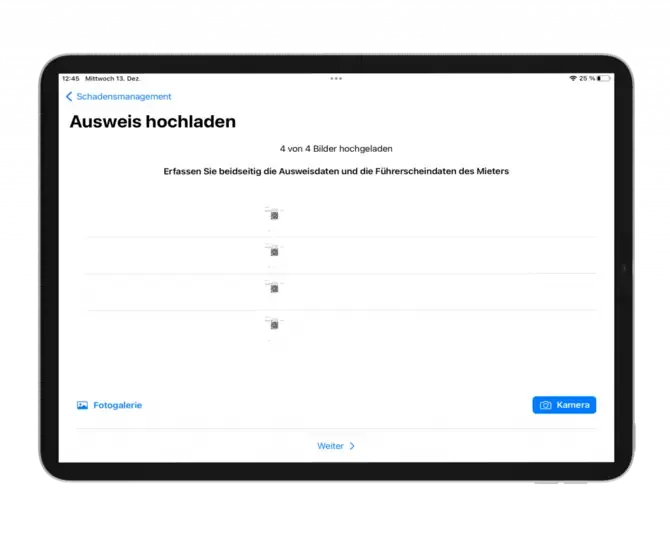
Tap “Pickups” to display upcoming pickups. Open a booking, check the booking details, and then start the pickup process.
Document damage
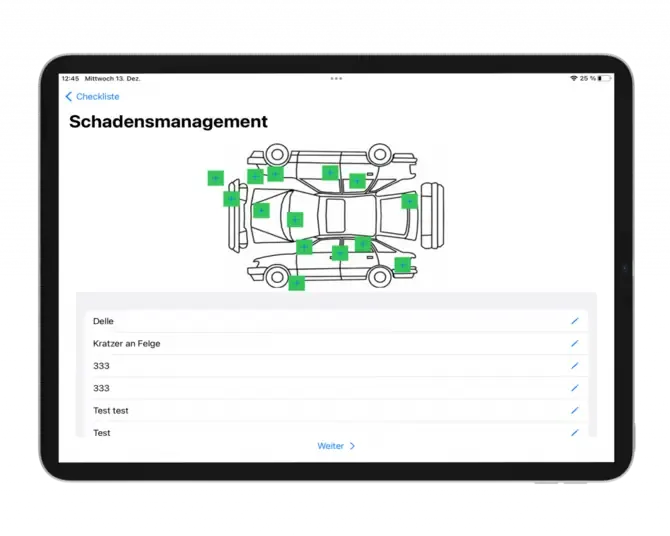
Check existing damage or create new damage entries. To do this, tap the affected area in the damage diagram. You can also use the photo function to document damage further.
Checklists
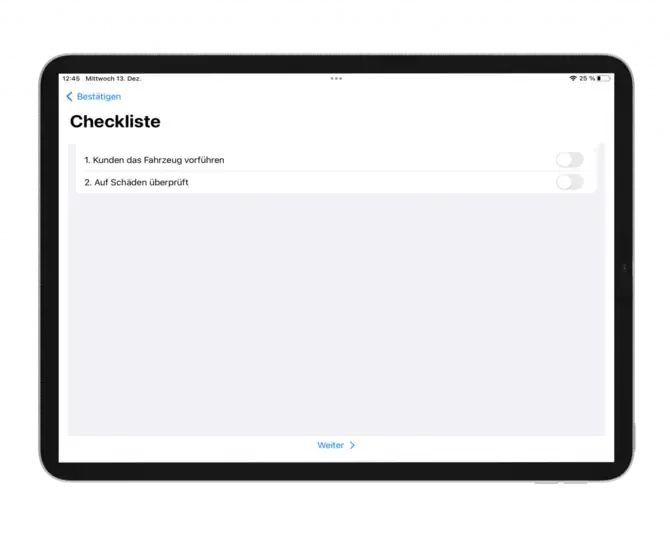
You define checklists for pickup and return in the backend under “Settings” → “Basic settings” → “Pickup and return”. The entries are saved in the process and can be evaluated in the form editor.
Generate rental agreement
After the relevant steps have been completed, the customer can provide their signature depending on your settings. The rental agreement is then generated and displayed. The customer automatically receives the rental agreement by email if this has been configured accordingly.
Vehicles
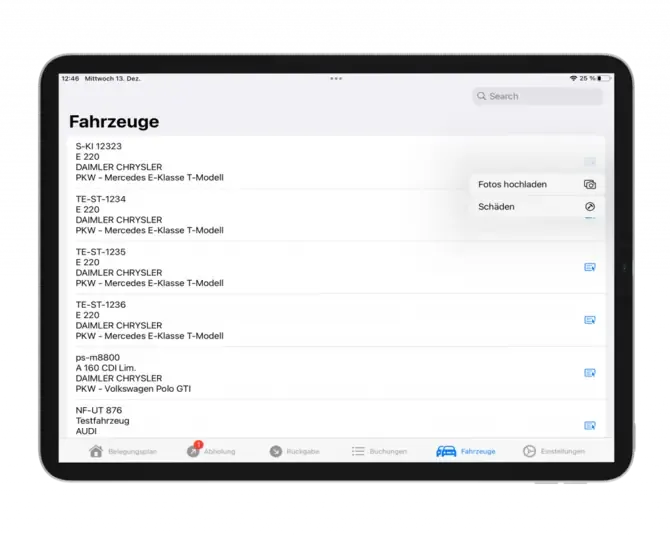
In the Vehicles tab, you can see an overall overview of all your rental items. You can assign new damage to your vehicles or create and upload images for this rental item.
Booking and vehicle overview